

Appearance
Appearance has two parts. The container (sheet, dialog or full screen) is drawn by the SDK and set per form in Share → Mobile app. The content is the survey itself, with the theme, fonts and colours you gave the form in Responsly.
Both are changed in Responsly and take effect without an app release.
Settings in the Mobile app tab
Section titled “Settings in the Mobile app tab”| Setting | Values | Default |
|---|---|---|
| Style | Bottom sheet, dialog, full screen | Bottom sheet |
| Size | Small, medium, large | Medium |
| Auto-close after completion | Seconds; 0 keeps the thank-you page until the respondent closes it | 3 |
| Allow closing before completion | On / off | On |
Styles
Section titled “Styles”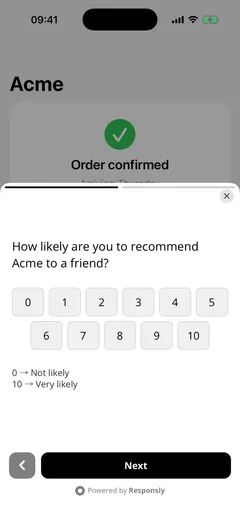
| Style | Layout |
|---|---|
| Bottom sheet | Attached to the bottom edge, full width up to 640 points, centred on tablets. Rounded top corners. The app behind it is dimmed. |
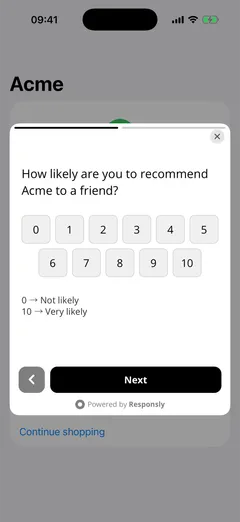
| Dialog | A centred card with rounded corners, 16 points from the screen edges and at most 480 points wide. The app behind it is dimmed. |
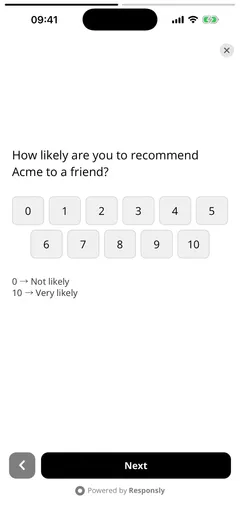
| Full screen | Covers the whole screen. The survey handles the safe areas itself. |
“Points” are points on iOS and dp on Android.
Size sets the height of a bottom sheet or dialog as a share of the screen height. Full screen ignores it.
| Size | Bottom sheet | Dialog |
|---|---|---|
| Small | 45% | 40% |
| Medium | 65% | 56% |
| Large | 88% | 80% |
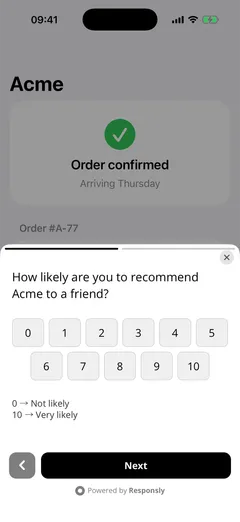
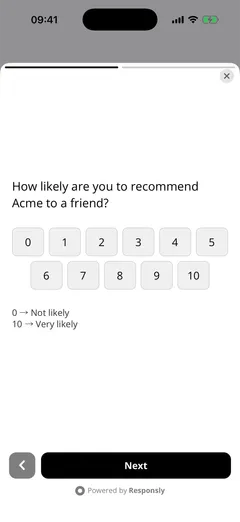
- The container is never lower than 320 points.
- The survey lays itself out for the height it gets, as in a mobile browser, and scrolls inside the container when it needs more.
- When a page of the survey needs more room, the container grows to fit, up to the large height (88% for a sheet, 80% for a dialog).
- It does not shrink again while it is visible, so the layout does not jump between pages.
Pick small for one-question surveys such as NPS or a rating, medium for two or three questions, and large or full screen for longer forms and forms with text answers.
Closing
Section titled “Closing”With Allow closing before completion on, the respondent can close the survey at any time:
- with the close button in the top trailing corner of the container,
- by tapping the dimmed area outside it,
- with the system back button or gesture on Android.
Closing before completion fires surveyDismissed and adds to the form’s closed count.
With the setting off, none of these work until the survey is completed. The survey can then be left only by completing it, or by your code calling closeSurvey. Use this sparingly: a survey the user cannot leave blocks the app.
After completion, whatever the setting:
- the close button appears and tapping outside works,
- the survey closes by itself after the auto-close time. With
0the thank-you page stays until the respondent closes it.
Keyboard, motion and rotation
Section titled “Keyboard, motion and rotation”- Keyboard. The container follows the keyboard. A bottom sheet stays above it and the content resizes. Your layout does not need to handle anything.
- Motion. A bottom sheet slides in and out; a dialog and full screen fade. If the user has reduced motion switched on in the system settings, the SDK honours it.
- Presentation. The survey is presented above whatever your app is showing. You do not pass a view controller, an activity or a widget.
Theme and colours
Section titled “Theme and colours”The survey looks the way it does on the web: the form’s theme, colours, fonts and images. The container takes its background colour from the survey, so there is no visible seam between the two.
To change the look, edit the form’s theme in Responsly. There is no styling API in the SDK.
Override the style for one call
Section titled “Override the style for one call”showSurvey can override the style for a single display with the presentation option. The value is one of bottom_sheet, dialog and fullscreen. Size, auto-close and the closing rule still come from the Mobile app tab.
Responsly.shared.showSurvey("AbCd1234", options: ResponslyShowOptions(presentation: .dialog))Responsly.showSurvey("AbCd1234", ShowOptions(presentation = PresentationStyle.DIALOG))Responsly.showSurvey('AbCd1234', { presentation: 'dialog' })Responsly.showSurvey('AbCd1234', presentation: ResponslyPresentation.dialog);ResponslySDK.ShowSurvey("AbCd1234", new ShowOptions { Presentation = ResponslyPresentation.Dialog });The names of all three styles on each platform are in the API reference.
Surveys started by triggers always use the style from the Mobile app tab.
A link in the survey that leads somewhere else opens in the system browser, not inside the container. See Troubleshooting.